Android Keystores
You need to sign your Android applications with a keystore in order to install and test your application on virtual or real devices and submit your application to Google Play store.
Android keystores can be generated in Appcircle or pre-obtained keystores can be uploaded to use for signing Android applications. If you want to generate keystore in your machine, you can use KeyStore Explorer.
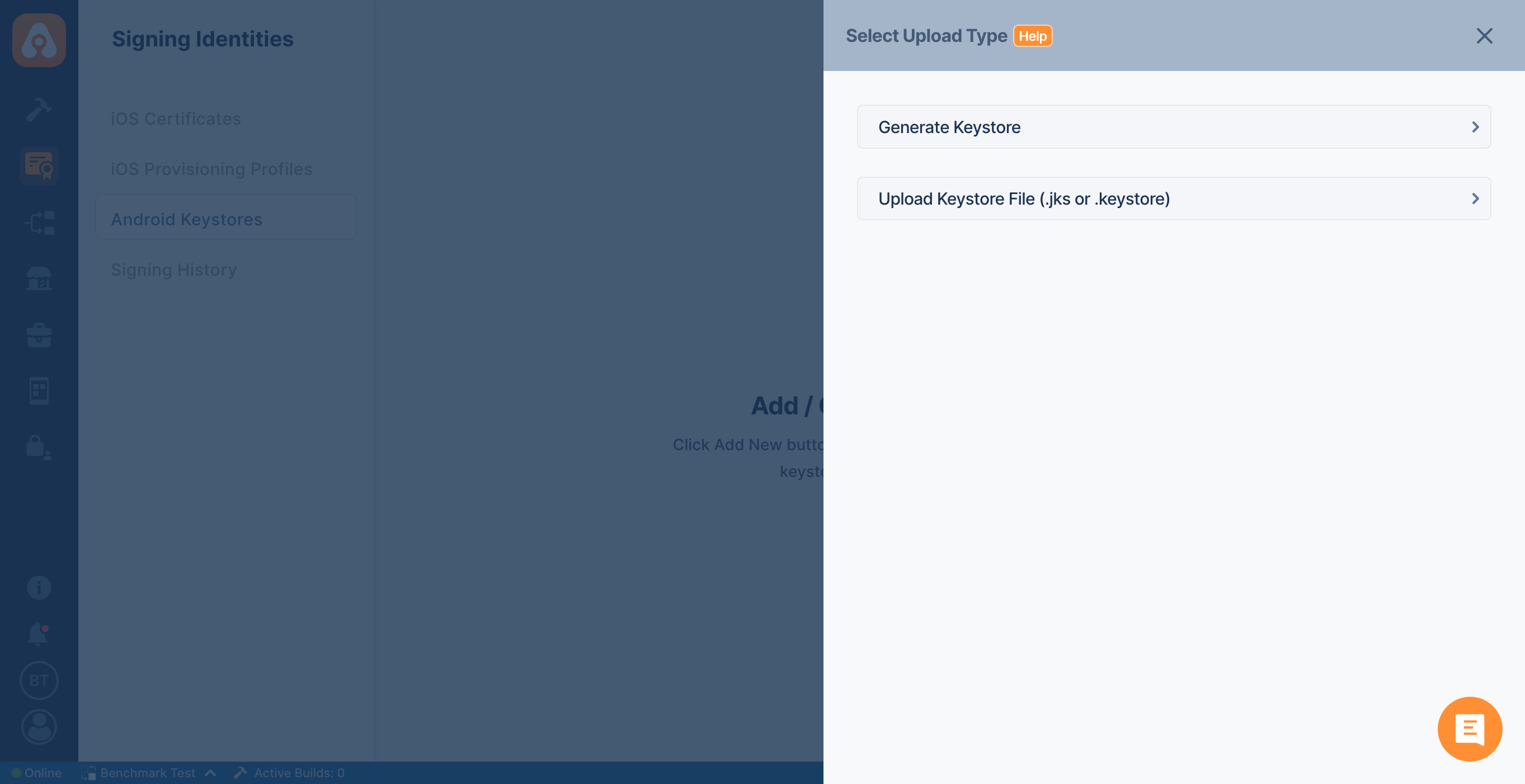
1. Generate Android Keystores
You can create a keystore just by entering the necessary information. No additional software is needed.
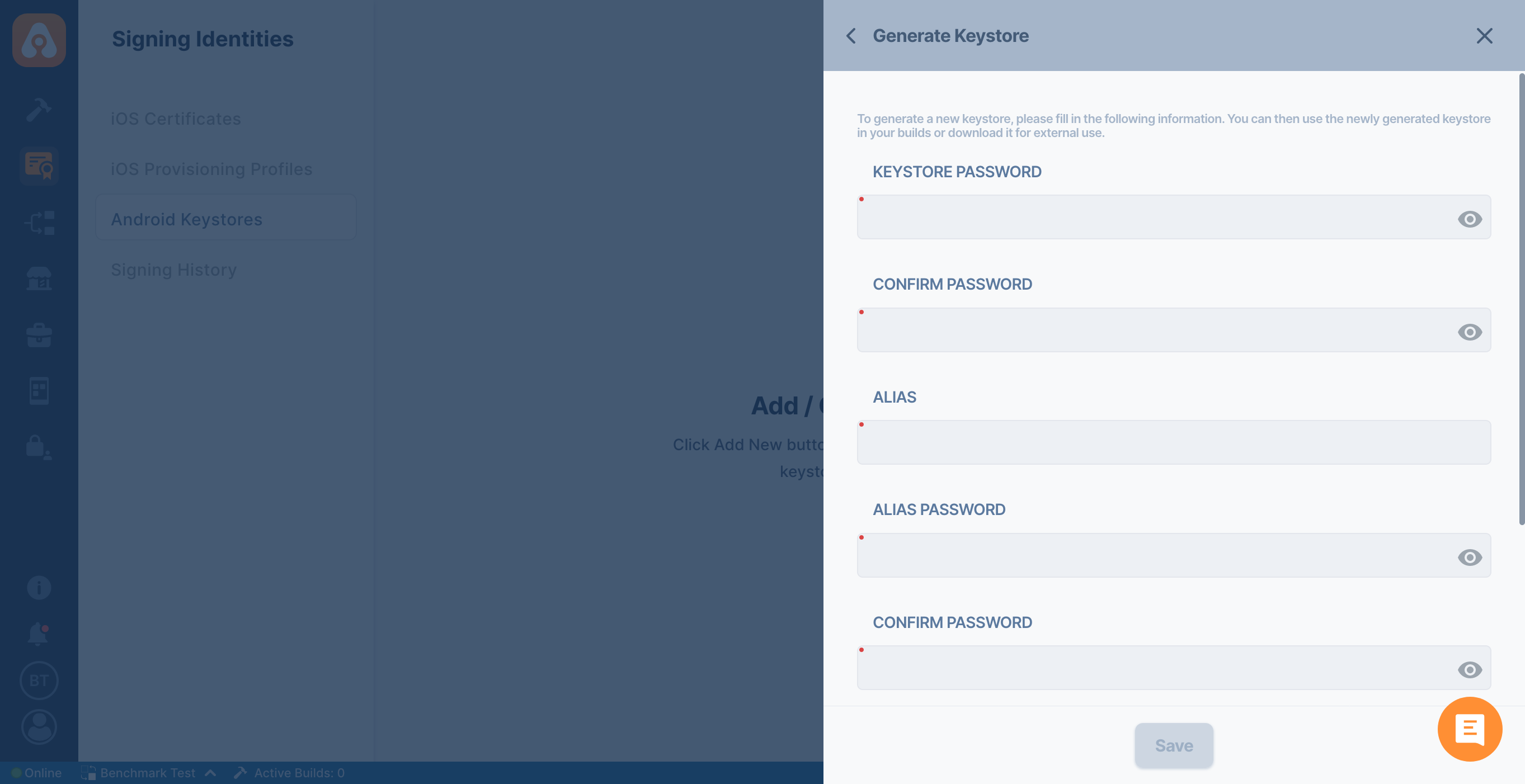
2. Upload Android Keystore File
Upload your readily available keystore file along with the password(s).
Only files with .keystore extension can be uploaded.
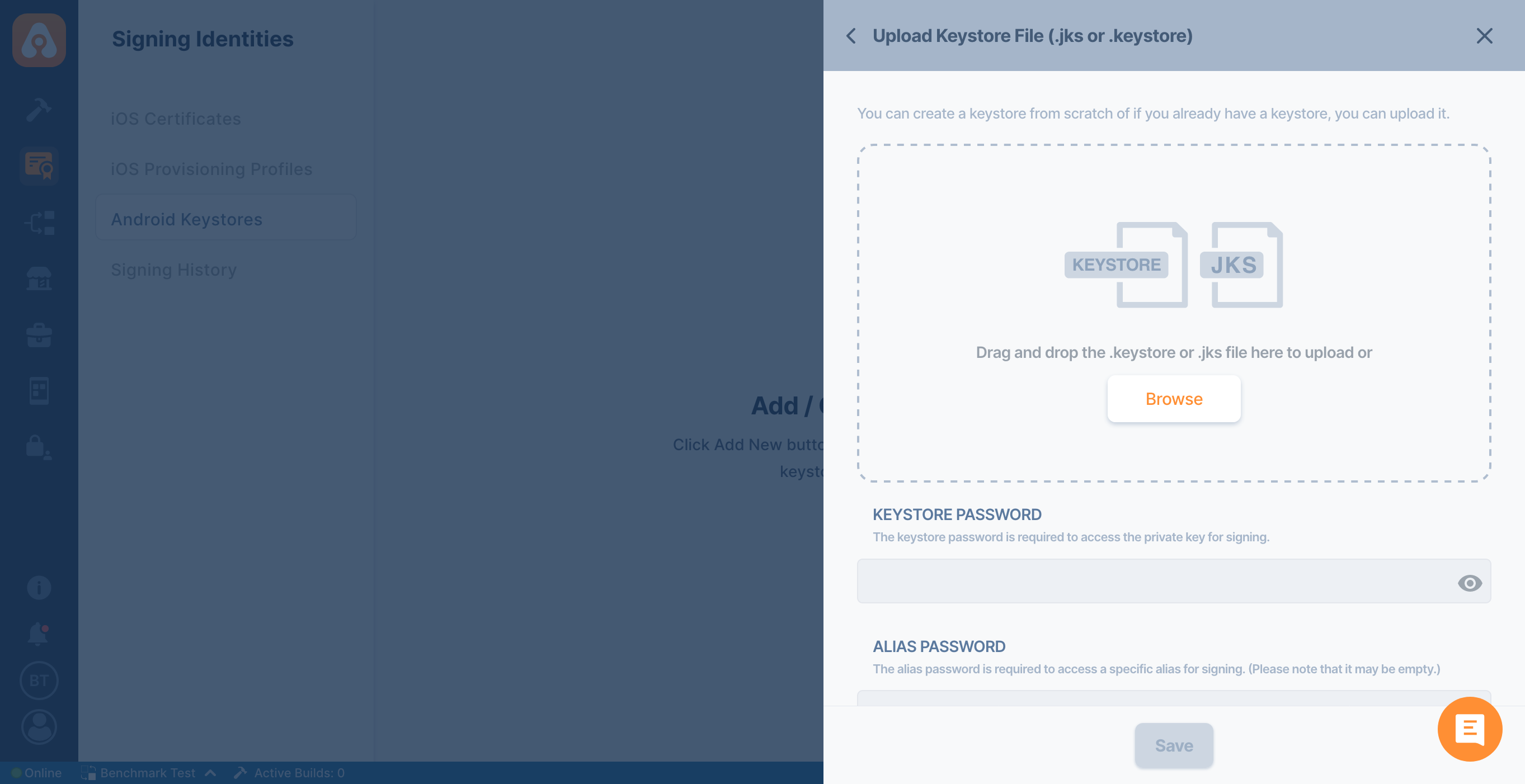
Builds with debug type will be signed with a default keystore and don't need a keystore file to be uploaded to Appcircle. If you are building your app for distribution, you need to upload your keystore file in order to have your application signed.
You will be notified when an Android Keystore is about to expire. You can see the expiration notification in the in-app notification window and optionally enable expiration notifications for Email, Slack, Microsoft Teams, etc.
Standard Schedule: Keystores already in the system 30+ days before expiration receive notifications at 30, 15, 7, 3, 1 days before expiration, plus expiring today.
Late Upload: Keystores uploaded with less than 30 days remaining before expiration get notifications starting from upload day, then continuing with the next applicable intervals from the standard schedule.
Sharing Android Keystores
Root Organization users have the ability to share their Android Keystores with Sub-Organizations.
Shared keystores can be used in Sub-Organizations just like locally created or uploaded keystores.
How to Share Android Keystores
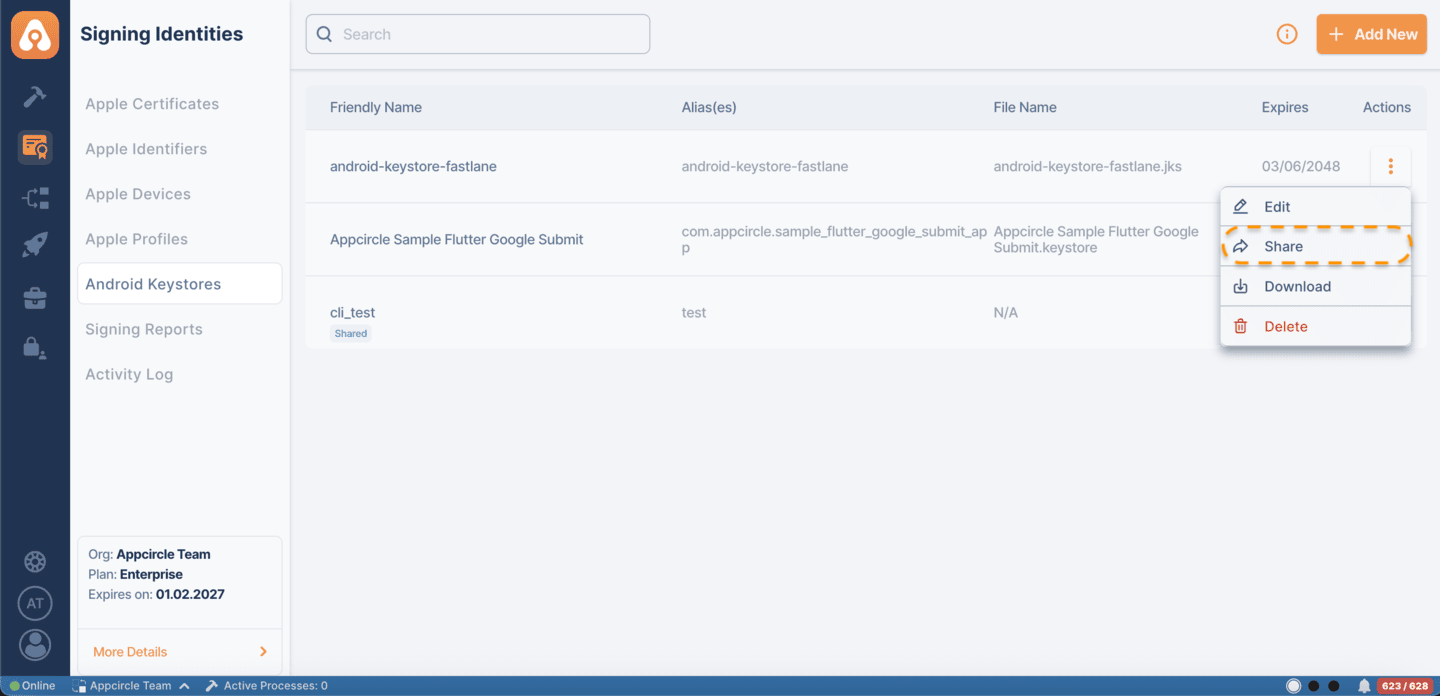
-
Navigate to the Android Keystores Section
Go to the Signing Identity module and open the Android Keystores section. -
Open Keystore List
Locate the keystore you want to share. -
Select the Keystore
Click the Share icon under the Actions column. -
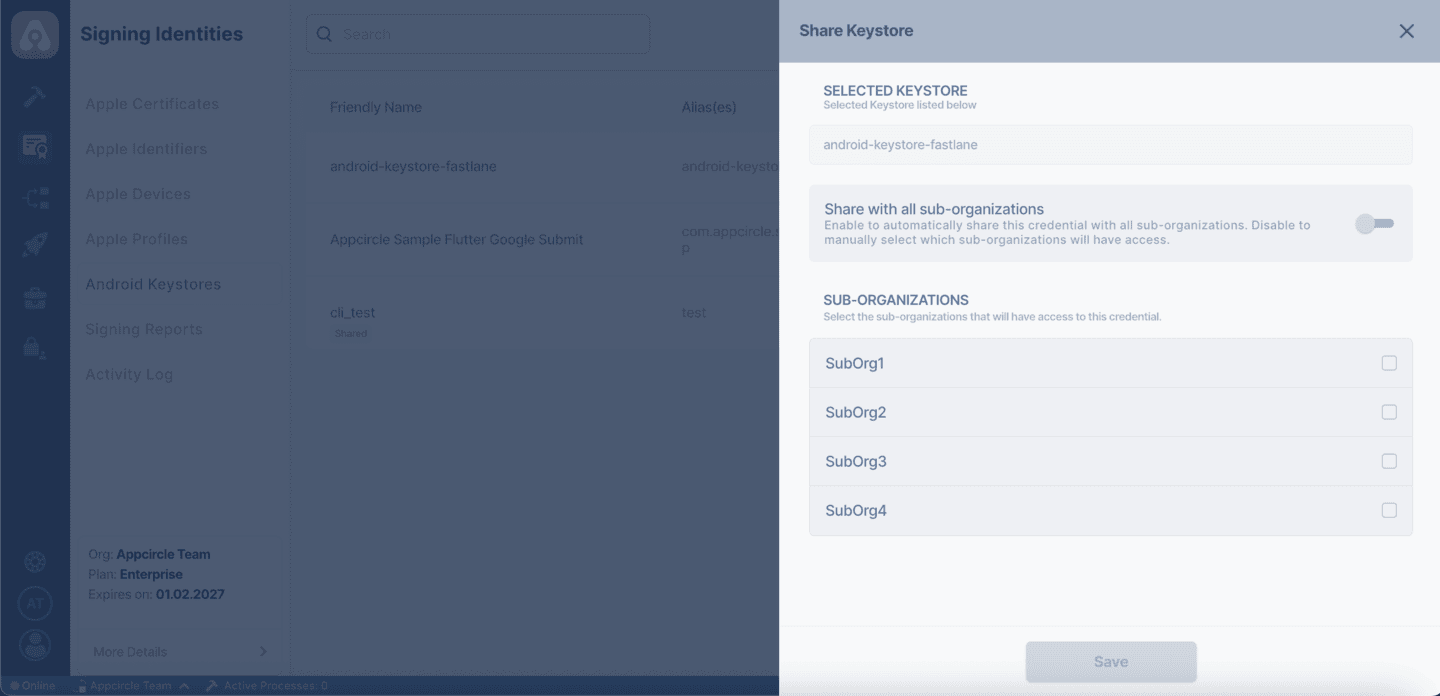
Configure Sharing Settings
In the Share panel:
- Enable Share with all sub-organizations to automatically share the keystore with all existing and newly created sub-organizations.
- Alternatively, manually select specific sub-organizations.
- Save Sharing Configuration
Click Share to complete the process.
Behavior in Sub-Organizations
- Shared keystores will be visible and selectable in Sub-Organizations.
- These keystores will be marked with a Shared on Root Organizations and Inherited tag on Sub Organizations.
- Sub-Organization users cannot edit, rename, or delete shared keystores.
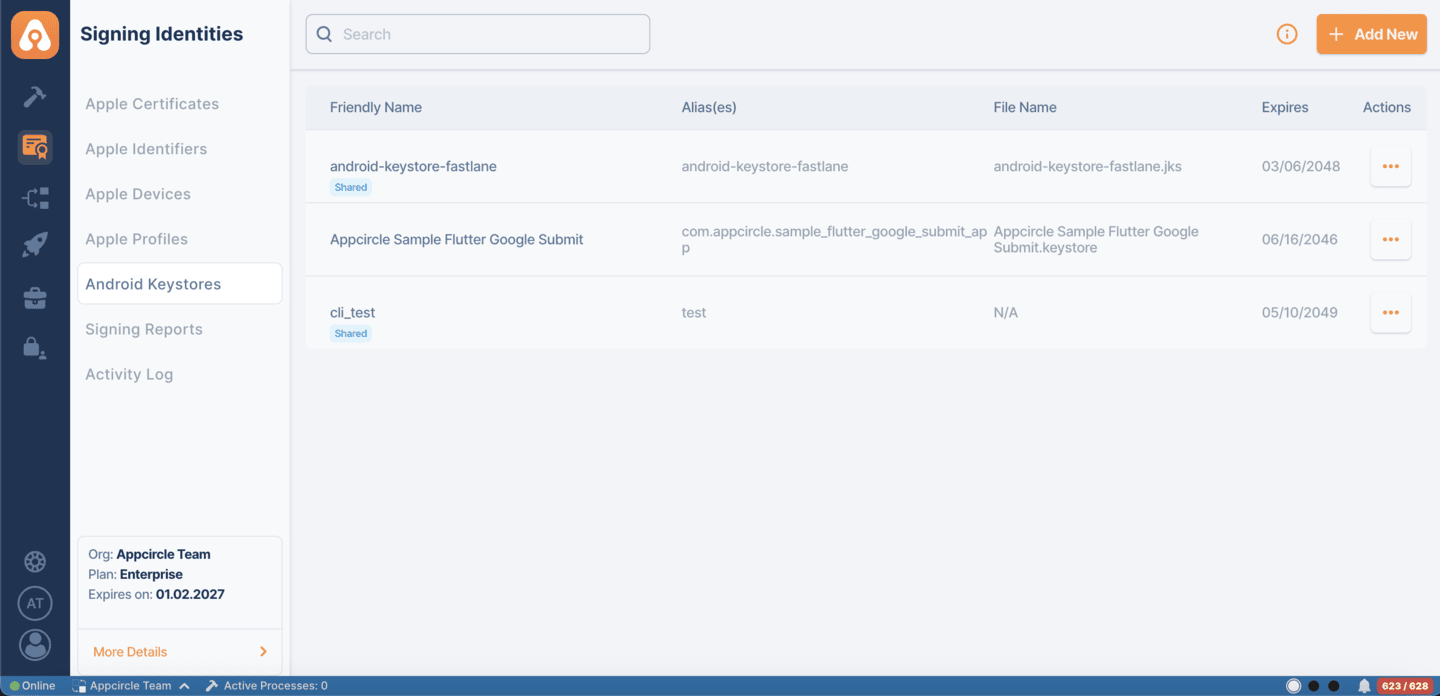
- If Share with all sub-organizations is enabled, the keystore will also be automatically available in newly created sub-organizations.
- Any changes or deletions made in the Root Organization will affect all Sub-Organizations using the shared keystore.
In-Project Keystore Usage
You can alternatively have your signing details stored in your Gradle file and use your in-project keystore to sign your app.;
Go to build workflow editor and disable Sign Application step to use your keystore in your Gradle file.
FAQ
What to Do if I Lost My Keystore (Signing File)
First, the keystore is essential for verifying app ownership and enabling updates on platforms like Google Play or Huawei AppGallery.
If you have lost your keystore, here are the steps you can take:
Google Play:
The Google Play Console can't restore a lost signing file, but it does let you reset it. To reset your signing file, follow these steps:
Only the account owner on Google Play Console can reset the signing file.
- Go to Google Play Console.
- Select the app for which you want to reset the signing file.
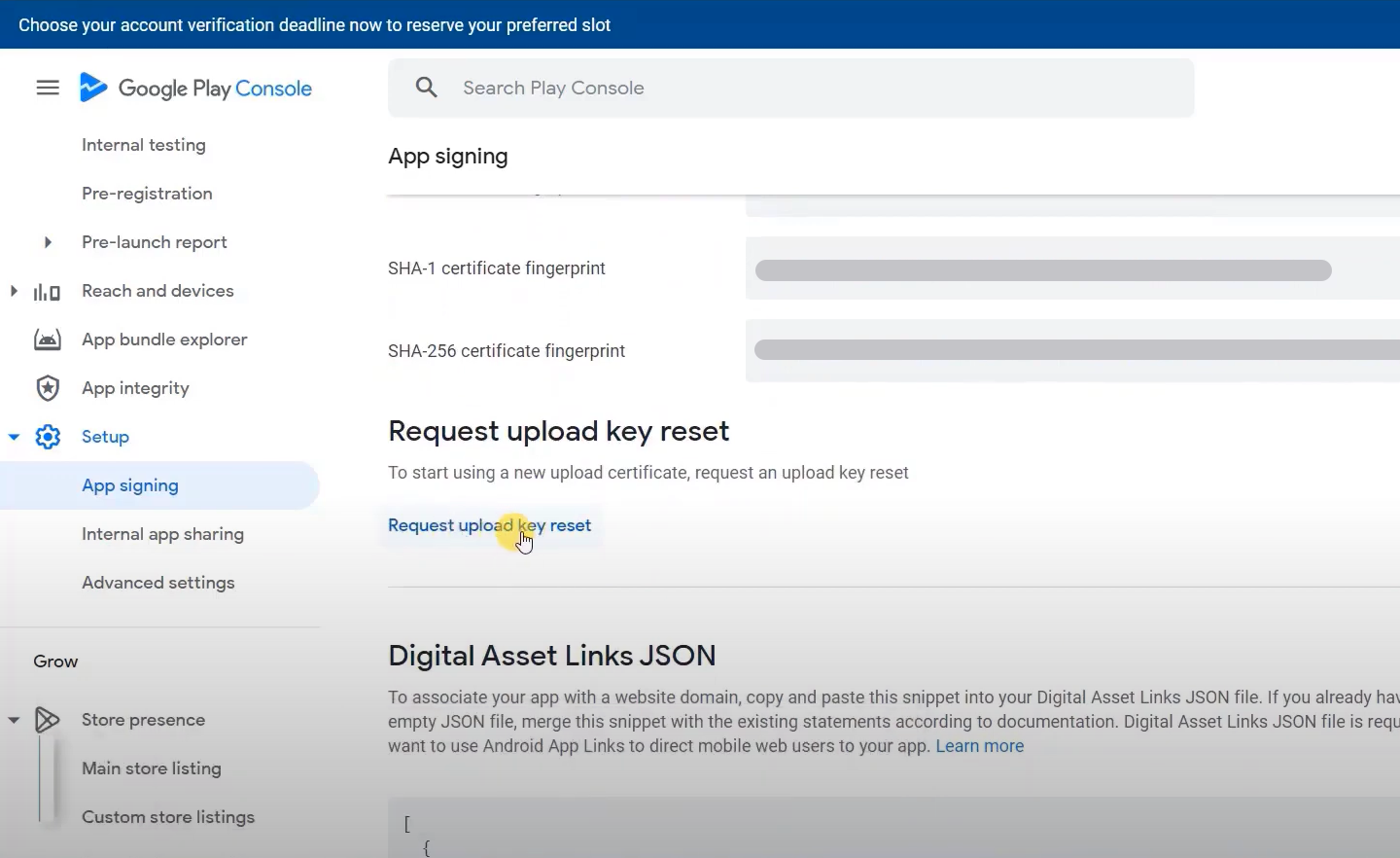
- Click the
App signingunder the⚙️ Setupsection. - Scroll down and click the
Request upload key resetbutton.
- Choose
I lost my upload key.
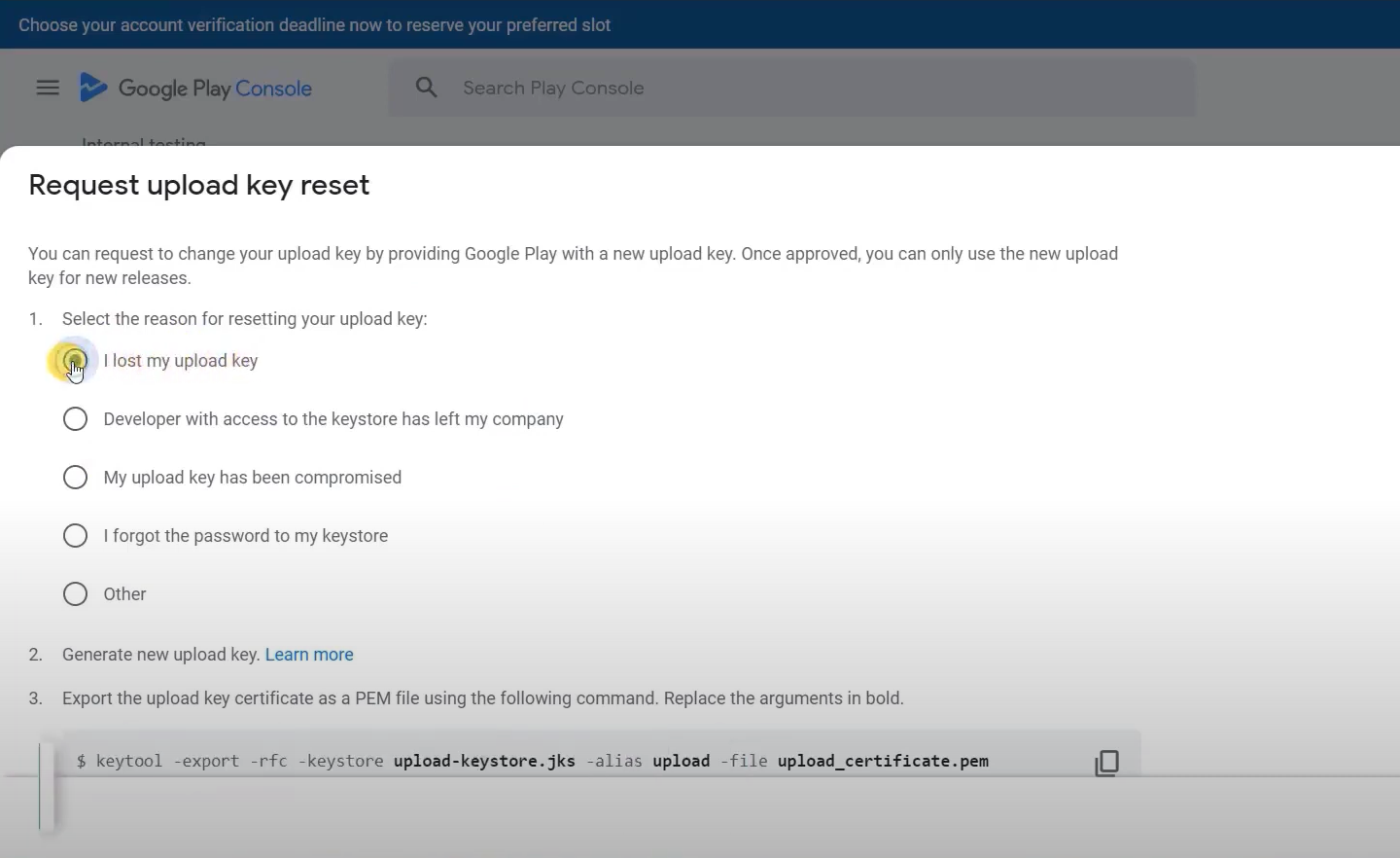
- Generate a new upload key via Appcircle or follow these instructions..
- Export the upload key certificate as a PEM file using the provided command.
- Upload the PEM file.
- Click the
Requestbutton. - You’ll receive an email within a few days if your request is approved by the Google Play Console team.
To cancel the reset request, click Cancel Request under the Request upload key reset header after step 9.
Resetting your upload key doesn’t affect the app signing key that Google Play uses to re-sign APKs before delivering them to users.
For more details, please check Google Play's documentation:
Huawei AppGallery:
Whether you can release the same app after losing the keystore on Huawei AppGallery depends on if you have previously used Huawei App Signing Service.
-
Without App Signing Service: You cannot update the app. You'll need either a new package name or a key change, which will require all users to reinstall the app.
-
With App Signing Service: Your key is protected on the server. You only need to manage your upload key, and even if it's lost, you can still update the app without user impact.